
Linear Kanban: What It Actually Does and When Boards Beat Lists
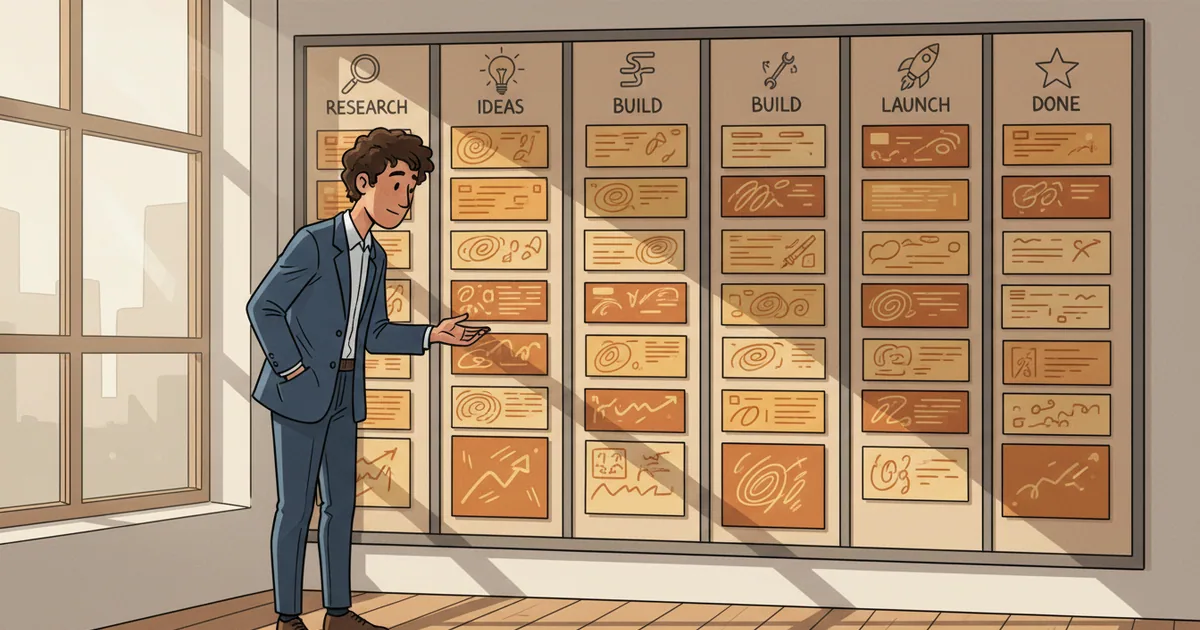
Linear's kanban view is a visual layer on top of your issues, not a separate workflow engine. You toggle between board view and list view inside the same project. The underlying data stays identical. Your issues appear as cards moving across columns that match your workflow states.
Most teams reach for kanban when they want at-a-glance progress visibility. The board makes bottlenecks obvious. If your "In Review" column stacks up with twelve cards while "In Progress" holds two, you see the problem before standup.
But Linear's kanban is not Trello. It's tightly coupled to cycles, projects. and a specific issue schema. The constraints matter more than the visual similarity.
Why Linear Kanban Matters

The kanban board exists because list views fail at one specific job: showing work distribution across states simultaneously. A list forces vertical scrolling. You see issues sorted by priority or assignee. You do not see how many items sit in each workflow stage without filtering or counting manually.
Kanban solves this with horizontal columns. Each column represents a workflow state. Linear ships with sensible defaults: Backlog, Todo. In Progress. In Review. Done. Canceled. You can customize these per team. The linear tool documentation covers state configuration in detail.
The visual payoff is immediate status comprehension. Product managers scanning a board know instantly whether the sprint is front-loaded or stuck. Engineers see their own cards in context of team progress. Stakeholders get answers without asking.
Linear's implementation adds keyboard shortcuts that make board interaction fast. Press V to cycle views. Drag cards between columns to update status. The friction is low enough that teams actually use the board instead of treating it as a reporting artifact.
How Linear Kanban Works in Practice
Open any project in Linear. Click the view toggle in the top toolbar. Select "Board." Your issues reflow into columns matching your team's workflow states.
Each card shows the issue title, assignee avatar. priority indicator. and labels. You can expand card density in settings to show estimates, due dates. or cycle information. Most teams start minimal and add fields when they notice gaps.
Dragging a card from "Todo" to "In Progress" updates the issue status. This triggers any automations you've configured. Linear can auto-assign reviewers, post to Slack. or update parent project progress when status changes. The linear issue tracking guide covers automation rules.
Filtering works the same as list view. Filter by assignee to see only your cards. Filter by label to focus on a feature area. Filter by cycle to see current sprint work. The board recalculates column contents instantly.
Swimlanes add a second dimension. Enable swimlanes to group cards by assignee, priority. or project within the same board. This turns a flat kanban into a matrix view. Engineering leads use swimlanes to spot uneven workload distribution across the team.
One underused feature: you can create issues directly from a column. Click the plus icon at the top of "In Progress" and the new issue inherits that status automatically. Useful for capturing work already underway during triage.
Linear's kanban respects your team's WIP limits philosophically, though it does not enforce them automatically. You set column limits in team settings. When a column exceeds the limit, the header changes color. The system warns but does not block.
The board view integrates with linear tracking for time-based reporting. You can see how long cards sat in each column through the issue activity log. This data feeds cycle time metrics that appear in your linear dashboard.
Tradeoffs to Understand First
Linear kanban is opinionated. The opinions create constraints worth knowing before you commit.
Workflow states are team-level, not project-level. If your design team needs different states than your engineering team, you need separate Linear teams. This works fine for most organizations. It breaks down when a single team runs multiple radically different workflows.
The board only shows issues. Linear's hierarchy runs workspace, team. project. issue. sub-issue. Kanban displays issues. Projects appear as groupings or swimlanes. Sub-issues do not get their own cards unless you promote them to full issues.
No native card dependencies on the board. Linear supports issue blocking relationships in the data model. The board does not draw lines between blocked and blocking cards. You see a small indicator icon. You do not see a visual dependency graph.
Board performance degrades with scale. A board showing 500 cards loads slower than a list showing 500 issues. Teams with large backlogs typically filter to current cycle or active projects rather than displaying everything.
Evidence block: Linear's official documentation recommends keeping active board views under 200 issues for optimal performance. Larger datasets should use saved filters or cycle scoping. Source: Linear Help Center
The linear progression article discusses how these constraints affect long-term planning workflows.
Where Linear Kanban Usually Goes Wrong

The most common failure mode is treating the board as the source of truth while ignoring everything else.
Teams new to Linear sometimes live exclusively in board view. They skip cycles. They ignore projects. They create issues directly on the board without proper labeling or estimation. Six months later, they have a chaotic backlog with no historical data and no way to answer "what did we ship last quarter?"
The board is a lens, not the system. Use it for daily work visibility. Use list views, cycles. and projects for planning and reporting.
Overcomplicating workflow states. Teams add "Ready for QA," "QA In Progress." "QA Failed." "Ready for Staging." "On Staging." "Ready for Production." The board becomes a twelve-column monster. Nobody remembers which column comes next. Keep workflow states minimal. Four to six columns handle most software delivery workflows. If you need more granularity, use labels or custom fields instead of proliferating states.
Ignoring WIP limits entirely. Kanban theory emphasizes limiting work in progress to improve flow. Linear shows warnings when columns exceed limits. Teams dismiss the warnings because nothing enforces them. Columns overflow. Context switching increases. Cycle time balloons. Treat the warnings seriously. When "In Progress" exceeds your limit, stop starting and start finishing.
Not connecting kanban work to client visibility. Your board shows internal progress. Your clients see nothing unless you build a bridge. Teams using Linear without a client-facing layer end up copy-pasting status updates into emails. Tools like Feedvote create that bridge by syncing Linear issues to public or private roadmaps. Clients see progress without accessing your internal board.
Understanding what is a feature helps teams scope kanban cards appropriately. Cards that are too big become stuck. Cards that are too small create noise.
Frequently Asked Questions
How do I switch between kanban and list view in Linear?
Press V on your keyboard or click the view toggle icon in the toolbar. Linear remembers your last view preference per project. You can also set a default view in team settings that applies to all new team members.
Can I limit how many issues appear in a kanban column?
Linear supports WIP limits per workflow state. Go to team settings, select workflow. and set a limit on any state. The column header changes color when exceeded. Linear warns but does not block. Enforcement requires team discipline.
Does Linear kanban support swimlanes?
Yes. Click the group icon in the board toolbar and select your grouping dimension. Options include assignee, priority. project. label. and cycle. Swimlanes create horizontal rows within the board, letting you see two dimensions simultaneously.
How does Linear kanban handle sub-issues?
Sub-issues do not appear as separate cards on the parent board by default. They appear nested under their parent issue in list view. If you need sub-issues visible on the board, promote them to full issues or filter specifically for sub-issues using Linear's filter syntax.
Can clients see my Linear kanban board?
Not directly. Linear does not support external guest access to boards. Teams that need client visibility typically sync selected issues to a client-facing portal. Feedvote connects to Linear and publishes approved items to branded roadmaps without exposing your internal workspace.